GET FREE SOFTWARE WITH SERIAL AND CRACK CLIK HERE

GEt ANY REGISTERES SOFTWARE WITH SERIAL AND CRACK AND ENJOY.

LEARN WEB HACKING CLIK HERE

LEARN WEB HACKING AND ITS JUST FOR EDUCATIONAL PURPOSE.

COOKIES TATOURIAL CLIK HERE AND LEARN

LEARN COOKIE TATOURIAL BUT ITS JUST FOR EDUCATIONAL PURPOSE.

HOW TO TRACE IP ADDRESS CLIK HERE AND LEARN

LEARN HOW TO TRACE IP ADDRESS BY IP YOU CAN ACCESS AND HACK ANY COMPUTER.

My Blog List

Showing posts with label pass Recovery. Show all posts

Monday, January 30, 2012

BYPASS ANY WINDOWS PASSWORD WITH KON BOOT V1.1


Kon Boot is an application which will bypass the authentication process of Windows based operating systems.
Kon Boot can work on a USB flash drive, CD, or floppy diskette.
Using Kon Boot is simple. First load it to your desired media (CD, USB drive, or
floppy diskette) then insert it into the target computer, and start it up!

Recommended Minimum Hardware:
Intel Pentium III processor (or compatible) 128 MB RAM or greater
Operating Systems:
Microsoft Windows XP Home Edition (Service Pack 2+)
Microsoft Windows Vista Home Basic (32/64 bit)
Microsoft Windows Vista Home Premium (32/64 bit)
Microsoft Windows Vista Business (32/64 bit)
Microsoft Windows Vista Enterprise (32/64 bit)
Microsoft Windows 7 Home Premium (32/64 Bit)
Microsoft Windows 7 Professional (32/64 Bit)
Microsoft Windows 7 Ultimate (32/64 Bit)
Microsoft Windows Server 2003 Standard (32/64bit)
Microsoft Windows Server 2003 Datacenter (32/64bit)
Microsoft Windows Server 2003 Enterprise (32/64bit)
Microsoft Windows Server 2003 Web Edition (32/64bit)
Microsoft Windows Server 2008 Standard (32/64bit)
Microsoft Windows Server 2008 Datacenter (32/64bit)
Microsoft Windows Server 2008 Enterprise (32/64bit)
Technology Requires:
10MB free space on the hard drive. CD-ROM (for installation of the program from CD) or Floppy Drive or USB flash drive; computer mouse; keyboard;

Kon Boot will work with the following operating systems.
Microsoft Windows XP Home Edition (Service Pack 2+)
Microsoft Windows Vista Home Basic (32/64 bit)
Microsoft Windows Vista Home Premium (32/64 bit)
Microsoft Windows Vista Business (32/64 bit)
Microsoft Windows Vista Enterprise (32/64 bit)
Microsoft Windows 7 Home Premium (32/64 Bit)
Microsoft Windows 7 Professional (32/64 Bit)
Microsoft Windows 7 Ultimate (32/64 Bit)
Microsoft Windows Server 2003 Standard (32/64bit)
Microsoft Windows Server 2003 Datacenter (32/64bit)
Microsoft Windows Server 2003 Enterprise (32/64bit)
Microsoft Windows Server 2003 Web Edition (32/64bit)
Microsoft Windows Server 2008 Standard (32/64bit)
Microsoft Windows Server 2008 Datacenter (32/64bit)
Microsoft Windows Server 2008 Enterprise (32/64bit) 


Download it from here KonBoot V1.1

Wondershare PDF Password Remover v1.3.0.3 and Serial Key


Wondershare PDF Password Remover v1.3.0.3 and Serial Key || File Size : 4.77 MB. 


PDF Password Remover is designed to remove the password and restrictions (Owner Password) of PDF files. Right-click the PDF file, select Decrypt with Wondershare PDF Password Remover from the shortcut menu, the restrictions will be removed in seconds. It is easy for you to copy, edit or print the PDF files after decryption. 


Remove PDF Password and Restrictions

- Decrypt encrypted PDF files which were restricted by author to prevent others from copying, editing or even printing
- Remove the user/open password only if you key in the password correctly
- Support importing Adobe PDF 1.0 - 1.7 formats (.pdf) 


Miscellaneous

- Extremely easy to use
- User-friendly interface
- Standalone, doesn't need Adobe Reader or Acrobat to be installed
- Support PDF files in 10 languages: English, Turkish, Thai, Latin, Korean, Greek, Cyrillic, Arabic, Japanese, Chinese

Installation

1. Unzip the Application
2. Use Serial Key To Register
3. Enjoy


Wednesday, January 25, 2012

CardRecovery v5.30 with crack


Description: CardRecovery? is the leading photo recovery software for memory card used by digital camera. It can effectively recover lost, deleted, corrupted or formatted photos and video files from various memory cards. It supports almost all memory card types including SD (Secure Digital) Card, CF (Compact Flash) Card, xD Picture Card, Memory Stick, MicroDrive, SmartMedia Card, MMC (MultiMediaCard), MicroSD, MiniSD, SDHC and more.


CardRecovery, the award-winning digital photo recovery software is the reliable solution for digital image recovery, digital picture recovery, digital media recovery, photo rescue, photo restore, data recovery, or whether files were deleted, the storage was damaged or formatted.


Our unique and exclusive SmartScan technology completes those impossible recovery tasks that other software cannot touch -- SmartScan quickly locates and restores files that other recovery software could never find.


Using CardRecovery is safe and risk-free. The software performs READ-ONLY operations on your memory card. It doesn't move, delete, or modify the data on the card to avoid causing further damage or overwriting. It recovers the photos and movie clips from the source memory card and saves them to the destination location you specify.
     
Recover deleted photos from memory cards
Recover lost photos from memory cards
Recover lost movies from memory cards
Recover photos from formatted memory cards
Recover photos from damaged, unreadable or defective memory cards
Recover pictures from removable storage including flash drives
Recover images, video files from mobile phones
 Supported Storage
Secure Digital card, SD card, SDHC, miniSD, MicroSD (TransFlash) card recovery
Compact Flash card, CF Type I, Type II, MicroDrive, CF card recovery
Memory Stick, Memory Stick Pro, Duo, Pro-HG, XC, Micro(M2) recovery
MultiMedia card, MMC card recovery
SmartMedia, flash card recovery
xD Picture card recovery
Cellular phone, mobile phone memory card and digital media recovery
USB flash drive digital image recovery
 Supported Situations


Photos deleted accidentally or intentionally from memory cards
Photo loss due to formatting or "Delete All" operation
Memory card error or damage, or inaccessible memory card
Corruption due to the card being pulled out while your camera is on
Damage due to turning your camera off during a write/read process
Data corruption due to critical areas damage e.g. FAT, ROOT, BOOT area damage
Data loss due to using between different cameras/computers/devices
Other events that could cause damage to data
 Supported Photo/Video File Types


Common Picture Formats: JPG JPEG TIF
Common Video Formats: AVI MPG MOV MPEG ASF MP4 3GP MTS
Common Audio Formats: MP3 WAV
RAW Image Formats: Nikon NEF, Canon CRW and CR2, Kodak DCR, Konica Minolta MRW, Fuji RAF, Sigma X3F, Sony SRF, Samsung DNG, Pentax PEF, Olympus ORF, Leica DNG, Panasonic RAW and more
 Supported Camera Brands


Nikon, Canon, Kodak, FujiFilm, Casio, Olympus, Sony, SamSung, Panasonic
Fuji, Konica-Minolta, HP, Agfa, NEC, Imation, Sanyo, Epson, IBM, Goldstar
LG, SHARP, Lexar, Mitsubishi, Kyocera, JVC, Leica, Phillips, Toshiba, SanDisk
Chinon, Ricoh, Hitachi, Pentax, Kinon, Verbatim, Vivitar, Yashica, Argus, Lumix
Polaroid, Sigma and almost all digital camera brands in the market
 Supported Flash Memory Card Manufacturers


SanDisk, Kingston, KingMax, Sony, Lexar, PNY, PQI, Toshiba, Panasonic
FujiFilm, Samsung, Canon, Qmemory, Transcend, Apacer, PRETEC, HITACHI
Olympus, SimpleTech, Viking, OCZ Flash Media, ATP, Delkin Devices, A-Data
and almost all digital camera memory card brands in the market

 System Requirements
Microsoft Windows 98/NT/Me/2000/XP/2003/Vista/7
Free hard drive space 256 MB or more for storage of the recovered photos
A memory card reader if your camera does not appear as a drive letter

Its password is tat4cai


Saturday, January 14, 2012

How to Recover a lost password of your facebook and Gmail account

WebBrowserPassView is a password recovery tool that reveals the passwords stored by the following Web browsers: Internet Explorer (Version 4.0 – 9.0), Mozilla Firefox (All Versions), Google Chrome, and Opera. This tool can be used to recover your lost/forgotten password of any Website, including popular Web sites, like Facebook, Yahoo, Google, and GMail, as long as the password is stored by your Web Browser.

How to Recover a lost password of your facebook and Gmail account

Download


Thursday, January 12, 2012

How to Recover PDF Password


PDF unlocker, which is Recover PDF Password, can help you find your lost passwords for protected PDF documents created in any version of Adobe Acrobat, including Unicode passwords for Acrobat 9.x PDF files, no matter what language or keyboard layout you used to protect your data.
Features:
Does NOT need Adobe Acrobat software
Recovers “User” password, which is required to open the file
Recovers “Owner” password, which permits to use PDF files without any restrictions (copy, print, edit, etc.)
Brute-force and dictionary search are used to recover the password
Patterns can be used to minimize search time if any part of the password is known
Non-English characters in passwords are supported
Automatically saves password search state and can resume after a pause
Handy recovery history
Decrypts PDF files
Removes digital signature from a decrypted PDF file
Supports PDF 1.7 (Acrobat 9.x) files, including 256-bit decryption
Supports Windows 2000, XP, 2003, Vista, Windows Server 2008 x32, Windows 7, all 64-bit system platforms
Supports multiprocessor systems for even higher speed of password search


How to use PDF Password Recovery
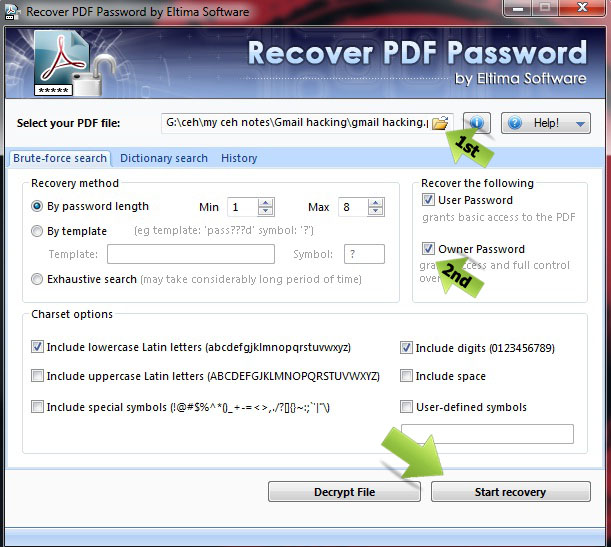
First Download PDF Password Recovery from Here and install it on your computer.
Launch Recover PDF Password – an essential PDF unlocker.
Select the PDF file you are going to unlock PDF password for and add it to Recover PDF Password.
To unlock PDF document choose whether you will be recovering “Owner” or “User” password.
Choose the search method to unlock PDF. Choosing the right method can significantly save your time.
Click on start recovery


    How to Recover PDF Password

     Download

    Tuesday, January 3, 2012

    Reveal and Recover Windows NT, 2000, XP, 2003 and Longhorn Login (including Administrator) Username and Password with Login Recovery


    Windows, either Windows NT, Windows 2000, Windows XP, Windows 2003, Windows Vista and Windows Longhorn Server protects user accounts with passwords, and an user or an administrator need to authenticate with both his or her userid and password correctly in order to log-in and gain access to the computer. What if you have forgetten your Windows login username or password, especially forget Windows administrator password which can be used to help you to reset all other user names and password? You can recover and reveal the Windows logon user id and password including the administrator password with the help of various third-party tools, such as Login Recovery.


    Login Recovery is a service provided for the legitimate retreival and recovery of windows passwords and can reveal user names and recover passwords for Windows NT, 2000, XP, 2003 and Longhorn, without the need to change or reset any password, nor it will change, write or install anything on the computer. To use Login Recovery password recovery service, an user must have physical access to the computer, and only local user or administrator accounts can be recovered. User accounts and passwords stored a central domain controller remotely cannot be recovered. To start the process, follow the simple steps in the instruction as below.

    1. At any Windows computer with internet access, download this file.
    2. Run the image.exe, pressing Yes to any security warnings.
    3. When prompt with “Insert floppy to write”, insert a blank floppy disk and click OK.
    4. Remove the disk when it’s done.
    5. Go to the computer you want to recover passwords from (only works on Windows NT/2000/XP/2003/Longhorn).
    6. Make sure the computer is off and shutdown.
    7. Insert the floppy disk and then turn on the computer.
    8. The system should boot up from floopy drive (if it’s not you need to check the bootup sequence if your BIOS settings), and some text will flick across the computer screen then the computer should switch off by itself. (Takes about two minutes)
    9. Remove the disk.
    10. Go back to any Windows computer with internet access, and insert the floppy disk.
    11. Go to Login Recovery page, and locate the file upload section (under Step 3), which asks for file location and email address.
    12. Type A:\UPLOAD.TXT into the box, or you can use browse to select the file from your floppy disk.
    13. Key in your email address (mandatory for password retrieval).
    14. Click Submit.
    15. You should receive an email notifying you that the passwords have been processed within minutes.
    16. You can check the progress of recovery anytime at the results page.
    Login Recovery provides free service or priority service. Free service passwords recovery process will have to wait up to 48 hours for the decrypted and recovered passwords to be displayed to you, as the passwords to be decrypted are processed according to queue. If you opt for priority server with minimal payment, your passwords will be at the front of the queue, which typically mean the passwords will be decrypted in less than 10 minutes.
    You will notice that you need a floppy disk and floppy drive to use the Login Recovery service, and your PC may not have it. An alternative by using CD is provided too. Download the zip file which contains an ISO file that has to be burned to a CD. Then put the CD in to the CD-ROM drive on the computer that has to crack and hack and password, and follow the above steps, except that, you have to copy down the text that appears on the screen and enter the text into the box on this page (under Using a CD image) exactly. However, you may only enter pairs of lines for users that you wish to recover passwords for, as the CD boot up process will generate a list of all users for each install of Windows.
    Another alternative is to generate password hashes in pwdump2 format by using utilities such as SAMInside, PWDUMP2, PWDUMP3, and network sniffer tools. However, you probably can’t do much here once you forget your administrator password as you won’t be able to access to the computer.

    Monday, December 26, 2011

    Where The Saved Passwords Stores In Windows Xp & Vista - Must for hackers and Beginers


    Hello Guys Today i am going to Explain the very basic things that you must know If you Want to become a Hacker or you are a Hacker (whatever be). In this Tutorial I will Explain you "Locations where the passwords are Saved in Windows Operating System". Various readers of my blog asked me about where the passwords really stored in windows. So today I am going to Explain this where the password really stores...So Read on...


    This Tutorial is Program Oriented Means Different Locations for Different Softwares and window components...

    First of all You Need to Know that Most Of the Passwords are stored in Registry . So you Must Know How to access Registry ... Also In Most of cases passwords are Encrypted so to decrypt you can google it for its decrypter....
    Note: Windows Profile Means C:/Document and Settings/(user account)/application data

    HOW TO ACCESS REGISTRY ??


    1. Goto Start Menu.


    2. Click on Run.
    3. Type "regedit" (without quotes) in the Run Box .After that this Windows Opens . Now you are ready to see that.


    LOCATIONS OF SAVED PASSWORDS !

    # Internet Explorer 4.00 - 6.00: 

    The passwords are stored in a secret location in the Registry known as the "Protected Storage".
    The base key of the Protected Storage is located under the following key:

    "HKEY_CURRENT_USER\Software\Microsoft\Protected Storage System Provider".

    You can browse the above key in the Registry Editor (RegEdit), but you won't be able to watch the passwords, because they are encrypted.
    Also, this key cannot easily moved from one computer to another, like you do with regular Registry keys.

    # Internet Explorer 7.00 - 8.00: 

    The new versions of Internet Explorer stores the passwords in 2 different locations.
    1. AutoComplete passwords are stored in the Registry under


    HKEY_CURRENT_USER\Software\Microsoft\Internet Explorer\IntelliForms\Storage2.


    2. HTTP Authentication passwords are stored in the Credentials file under

    Documents and Settings\Application Data\Microsoft\Credentials 


    , together with login passwords of LAN computers and other passwords.


    # Firefox: 

    The passwords are stored in one of the following filenames: signons.txt, signons2.txt, and signons3.txt (depends on Firefox version)
    These password files are located inside the profile folder of Firefox, in


    [Windows Profile]\Application Data\Mozilla\Firefox\Profiles\[Profile Name]


    Also, key3.db, located in the same folder, is used for encryption/decription of the passwords.


    # Google Chrome Web browser: 

    The passwords are stored in

    [Windows Profile]\Local Settings\Application Data\Google\Chrome\User Data\Default\Web Data


    (This filename is SQLite database which contains encrypted passwords and other stuff)


    # Opera: 

    The passwords are stored in wand.dat filename, located under


    [Windows Profile]\Application Data\Opera\Opera\profile


    # Outlook Express (All Versions):

    The POP3/SMTP/IMAP passwords Outlook Express are also stored in the Protected Storage, like the passwords of old versions of Internet Explorer.


    # Outlook 98/2000: 

    Old versions of Outlook stored the POP3/SMTP/IMAP passwords in the Protected Storage, like the passwords of old versions of Internet Explorer.


    # Outlook 2002-2008: 

    All new versions of Outlook store the passwords in the same Registry key of the account settings.
    The accounts are stored in the Registry under


    HKEY_CURRENT_USER\Microsoft\Windows NT\CurrentVersion\Windows Messaging Subsystem\Profiles\[Profile Name]\9375CFF0413111d3B88A00104B2A6676\[Account Index]


    If you use Outlook to connect an account on Exchange server, the password is stored in the Credentials file, together with login passwords of LAN computers.


    # Windows Live Mail: 

    All account settings, including the encrypted passwords, are stored in


    [Windows Profile]\Local Settings\Application Data\Microsoft\Windows Live Mail\[Account Name]


    The account filename is an xml file with .oeaccount extension.


    # ThunderBird: 

    The password file is located under


    [Windows Profile]\Application Data\Thunderbird\Profiles\[Profile Name]


    You should search a filename with .s extension.


    # Google Talk:

    All account settings, including the encrypted passwords, are stored in the Registry under


    HKEY_CURRENT_USER\Software\Google\Google Talk\Accounts\[Account Name]


    # Google Desktop: 

    Email passwords are stored in the Registry under


    HKEY_CURRENT_USER\Software\Google\Google Desktop\Mailboxes\[Account Name]


    # MSN/Windows Messenger version 6.x and below: 

    The passwords are stored in one of the following locations:

    1. Registry Key: HKEY_CURRENT_USER\Software\Microsoft\MSNMessenger
    2. Registry Key: HKEY_CURRENT_USER\Software\Microsoft\MessengerService
    3. In the Credentials file, with entry named as "Passport.Net\\*". (Only when the OS is XP or more)


    # MSN Messenger version 7.x: 

    The passwords are stored under

    HKEY_CURRENT_USER\Software\Microsoft\IdentityCRL\Creds\[Account Name]


    # Windows Live Messenger version 8.x/9.x: 

    The passwords are stored in the Credentials file, with entry name begins with"WindowsLive:name=".


    # Yahoo Messenger 6.x: 

    The password is stored in the Registry, under


     HKEY_CURRENT_USER\Software\Yahoo\Pager
    ("EOptions string" value)


    # Yahoo Messenger 7.5 or later:


     The password is stored in the Registry, under


    HKEY_CURRENT_USER\Software\Yahoo\Pager - "ETS" value.


    The value stored in "ETS" value cannot be recovered back to the original password.


    # AIM Pro: 

    The passwords are stored in the Registry, under


    HKEY_CURRENT_USER\Software\AIM\AIMPRO\[Account Name]


    # AIM 6.x:

    The passwords are stored in the Registry, under


    HKEY_CURRENT_USER\Software\America Online\AIM6\Passwords


    # ICQ Lite 4.x/5.x/2003: 

    The passwords are stored in the Registry, under


    HKEY_CURRENT_USER\Software\Mirabilis\ICQ\NewOwners\[ICQ Number]

    (MainLocation value)


    # ICQ 6.x: 

    The password hash is stored in


     [Windows Profile]\Application Data\ICQ\[User Name]\Owner.mdb (Access Database)

    (The password hash cannot be recovered back to the original password)


    # Digsby: 

    The main password of Digsby is stored in


    [Windows Profile]\Application Data\Digsby\digsby.dat


    All other passwords are stored in Digsby servers.


    # PaltalkScene: 

    The passwords are stored in the Registry, under


    HKEY_CURRENT_USER\Software\Paltalk\[Account Name].